
AutoPilot
The AutoPilot feature will allow you to schedule sharing your closet, sharing your closet to a Posh Party, and return activity from your news feed. One of the most powerful additions within the autopilot is the ability to “Send Offers” automatically as users like items in your closet while the autopilot is running. Additionally, captcha’s are solved.
To see the full video demo/tutorial visit: Insert YouTube Link Here
AutoPilot– Where it Works – Your Closet Only.
To Use
1) Navigate to your closet page on Poshmark.
2) Select the AutoPilot tab within Closet Assistant.
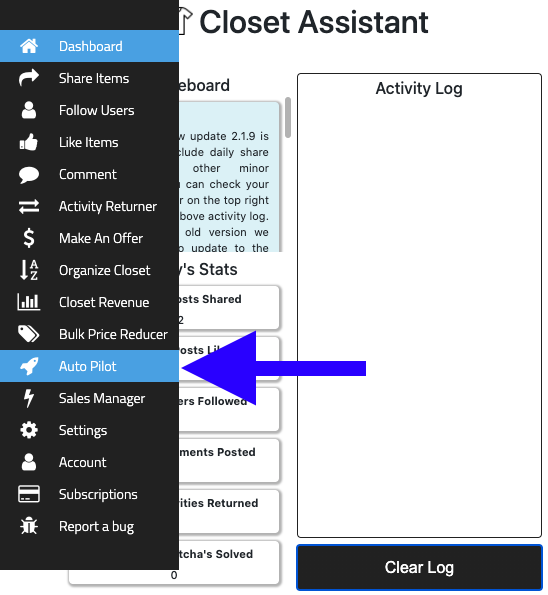
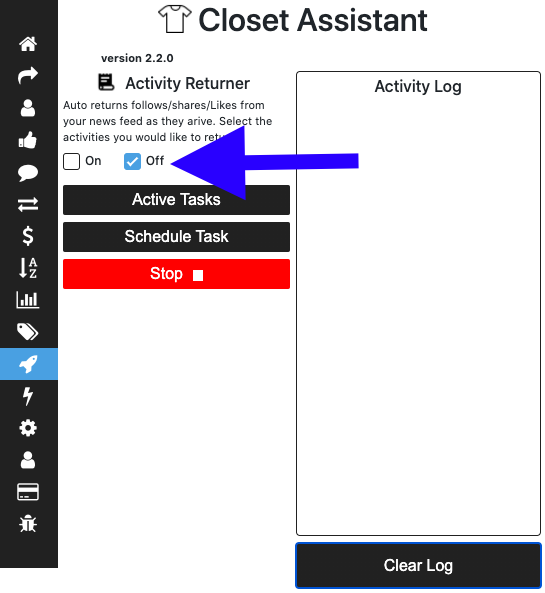
3) Turn on or off the activity returner. Turning on the activity returner will automatically return activity from your news feed while the autopilot is running.
4) In the off mode you will not see the like, share, or follow option as seen below.
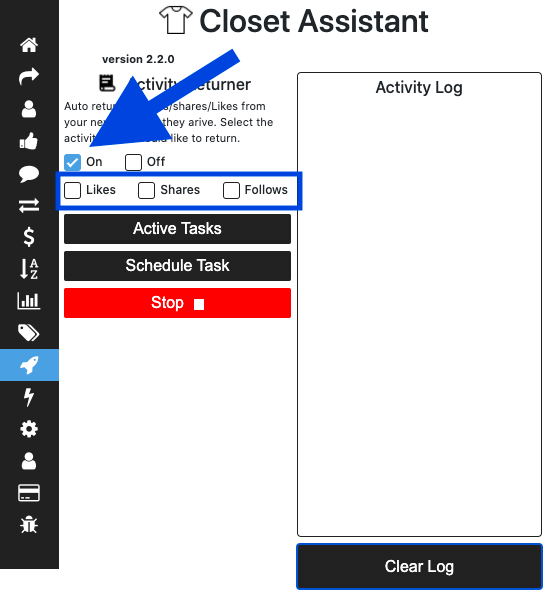
5) In the ON mode the like, share, and follow options will appear.
6) Selecting the Like check box will open the option to send offers to users who like items while the autopilot is running.
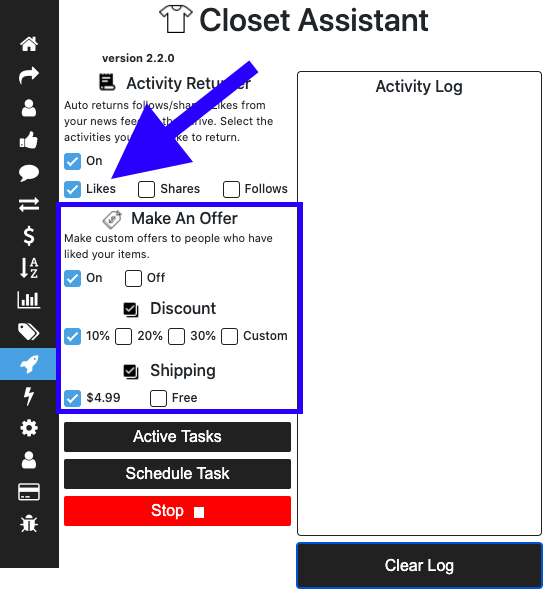
7) Once you have opened the option to send the offer automatically, you can then select the amount you would like to discount the item and the discounted shipping option. Selecting custom will allow you to enter your discount of choice.
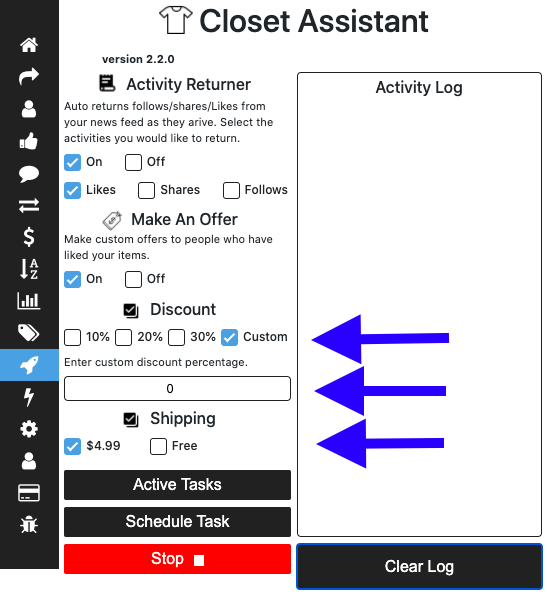
8) At this point you can select to start the autopilot by selecting the start button or continue to add a task. Its RECOMMENDED to add tasks such as sharing. As you share users will begin to like, follow, and share your items.
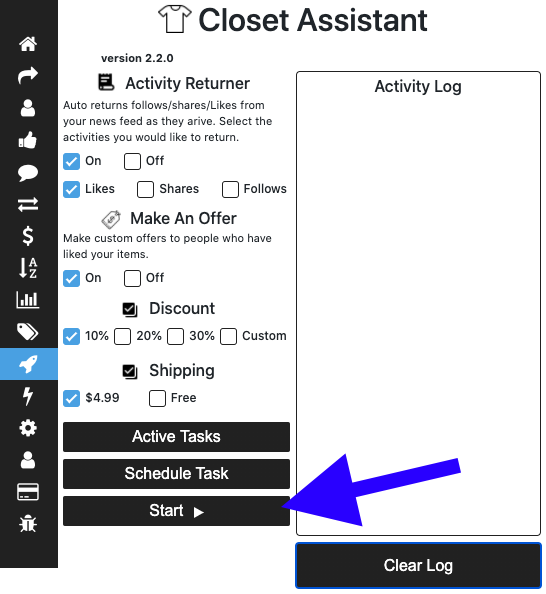
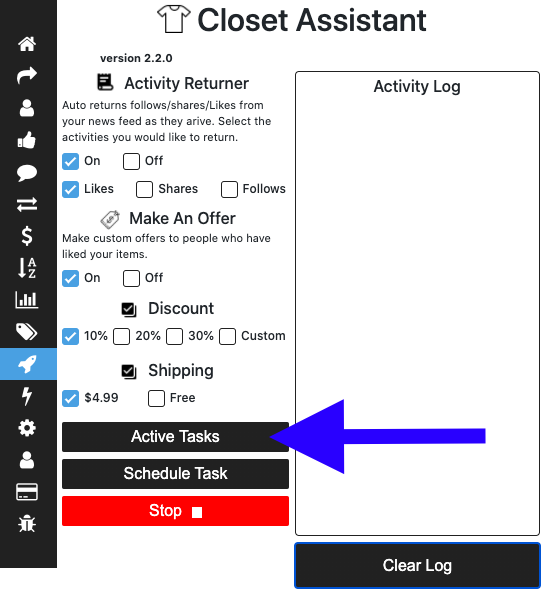
9) Select the schedule task button.
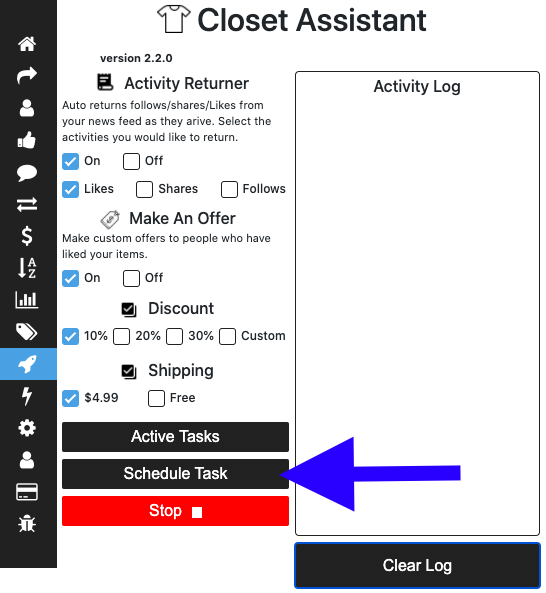
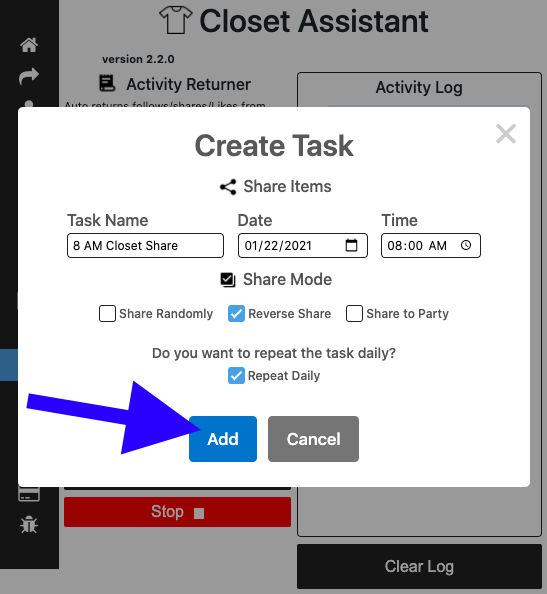
10) Selecting the schedule task button will open a dialog where you can schedule sharing and party sharing.
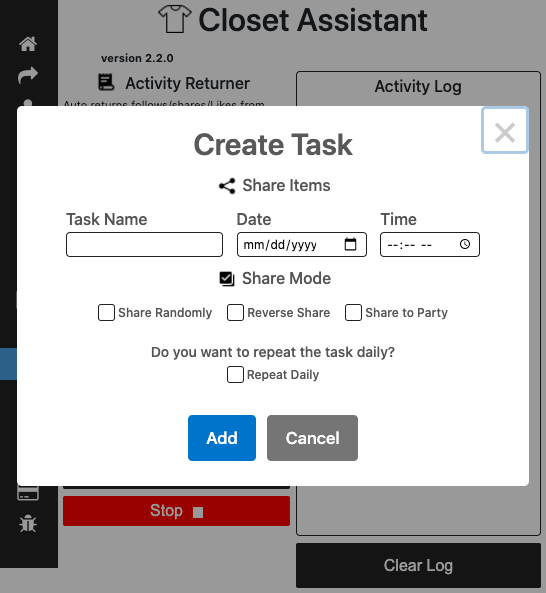
11) To schedule a task you will need to name that task, the task name will need to be at least “3” characters in length. If you have an active task name ” 8 am Closet Share” and attempt to name another task the same name the system will not allow it. We like to set up distinct times to share and use task names to keep track of.
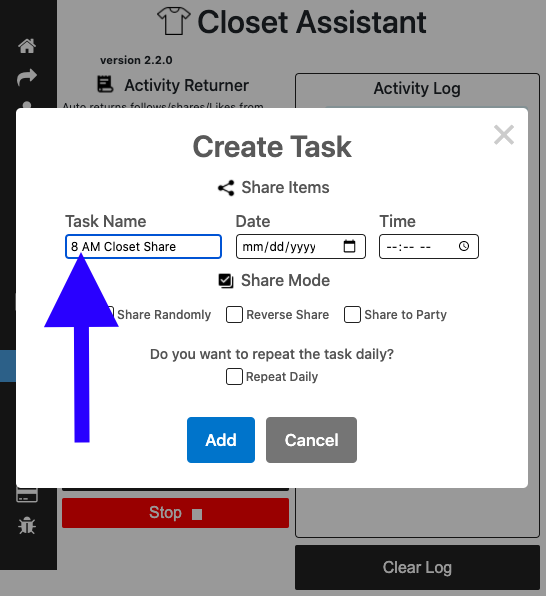
12) Set the date of when you would like the task to run. Clicking the calendar icon will display a popup of dates.
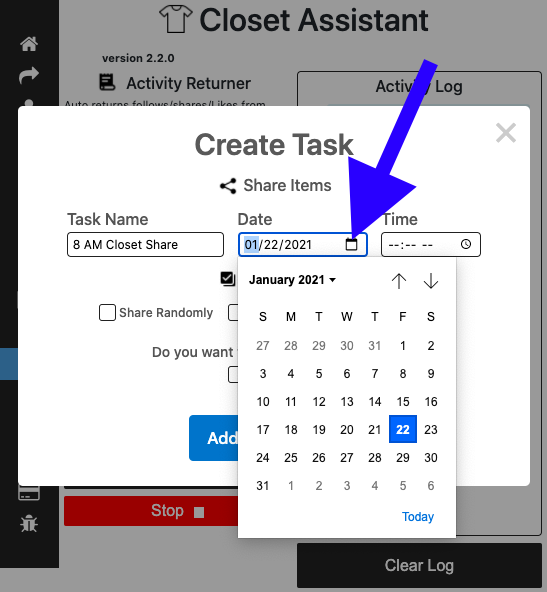
13) Set the time of when you would like the task to run. Clicking the clock icon will display a popup of times.
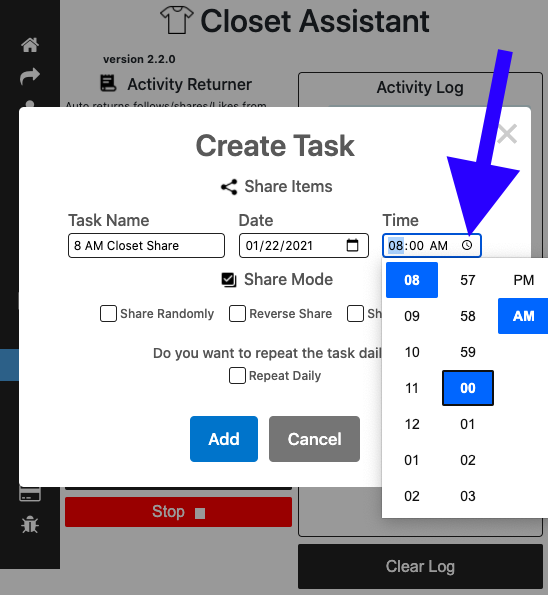
14) Select the share mode of sharing for that particular task. Share randomly, share in reverse mode, or share to a party. Selecting the repeat daily option will run that task on each day until canceled.
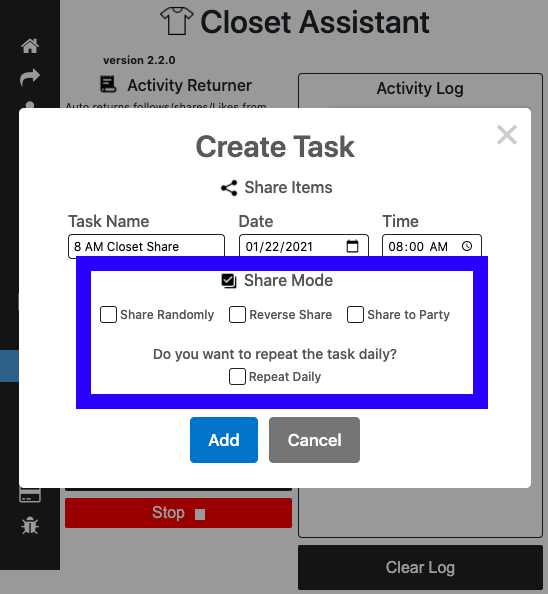
15) Select add, to add that task to the active task.
16) Once you have added a task you can see the scheduled task by selecting the “Scheduled Task” button on the auto pilot.
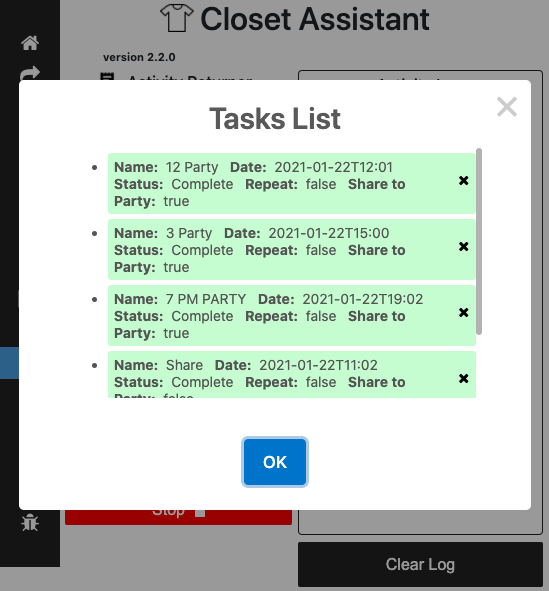
17) In the task list you will the names of all tasks you have scheduled. You will know a task has been completed by the status. You can clear each task by selecting the “X” on the right side of any task.
18) Once you have scheduled a task you can select “Start” and the Closet Assistant autopilot will do the rest! After starting the autopilot a new tab will open within your chrome browser displaying the message “This Window Is Being Controlled by Closet Assistant. To Regain Access Stop The Active Task.”.
Recommendations When Running The Autopilot.
Computer Recommendations
- Turn Screen Savers, Sleep Modes, or other energy-saving modes off.
- Interruptions of internet connections will cause the autopilot to stop.
Browser
Poshmark
- Filters– The only filters that will work are the “Market Place” filters. We recommend leaving the market place filter set to “ALL”.
- Parties – Each day posh parties occur at 12 pm, 3 pm, 7 pm, and 10 pm. We recommend sharing at a minimum to the 10 pm party. The 1o pm party allows all categories and brands to be shared. When sharing to parties at 12, 3, and 7 items that do not meet the party theme will not be shared. ***This will cause items to become out of order in your closet as items that only meet the party theme will be shared. Those items not meeting the party theme will display in the activity log as “Failed To Share”.
- Sharing Limits- There is a 4000 default limit on sharing it’s HIGHLY recommended to stay under this level each day.
Sharing Speeds.
Creating sales on Poshmark is not about how fast items are shared. We recommend setting the following speed in the setting panel.
Min 5 MAX 15
Activity Returner Priority.
When the autopilot is selected to “ON” the autopilot will return activity automatically as it comes into your closet unless you have scheduled a task. For example, you scheduled a task to share to the 10 pm party at 10:02 pm, with the activity returner selected. The autopilot will return activity up until 10:02 pm then it will give the priority to share your closet to the party. Once your closet completed sharing to the party the activity return will resume returning any activity that has come in while your closet was sharing to that party and continue returning activity until the next scheduled task begins.
Best Practices.
We suggest creating a task for each party and then setting up closet share tasks throughout the day. It’s recommended that if a party starts at 3 pm you select a random time during the party to share such as 3:03 pm, and mix those times up daily. The same goes for closet sharing you do not want to share month after month at the same times. Mix the times.
Task Ideas.
9 AM Closet Share
10 AM Party Share
12 PM Party Share
3 PM Party Share
5 PM Closet Share
7 PM Party Share
10 PM Party Share