
Sales Manager
The Sales Manager feature will allow you to schedule sales within your closet. The manager will mark down the price of items during the sale. Once the sale is over the manager will restore the price of the items in your closet.
To see the full video demo/tutorial visit: Insert YouTube Link Here
Sales Manager– Where it Works – Your Closet Only.
To Use
1) Navigate to your closet page on Poshmark.
2) Select the Sales Manager tab within Closet Assistant.
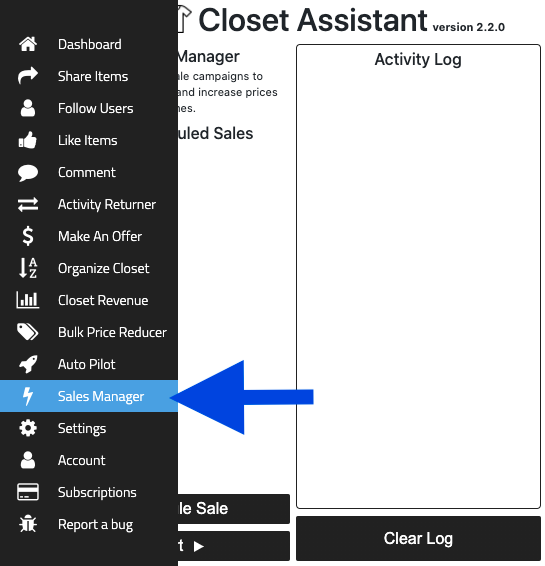
3) Within your closet you can choose to run a full closet sale or select only particular brands. To run a full closet sale do not select any Poshmark filters on the left side within your closet. If you would like to run a sale on only a few brands use the brand filters on the left side of your closet to filter the brands you would like to run the sale on.
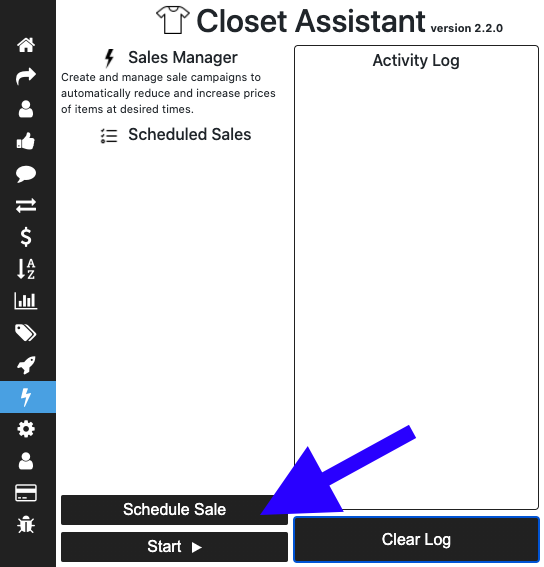
4) Select “Schedule Sale”
5) A new window will open allowing you to schedule your sale.
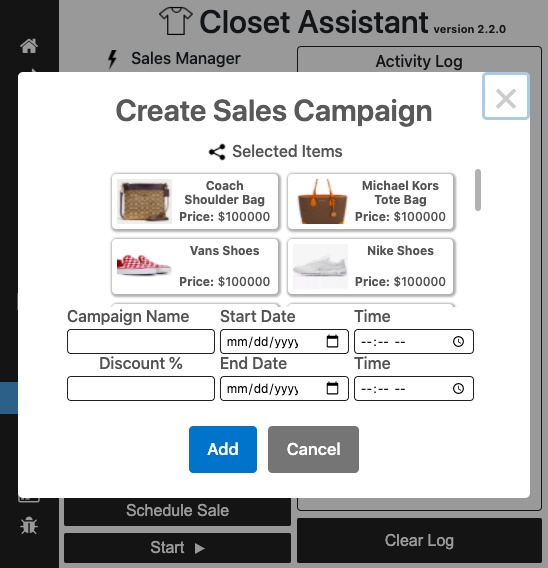
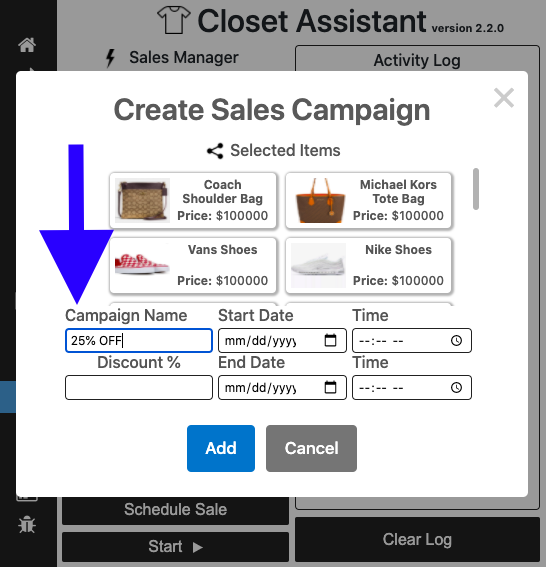
6) Enter in the campaign name.
7) Enter the campaign start date.
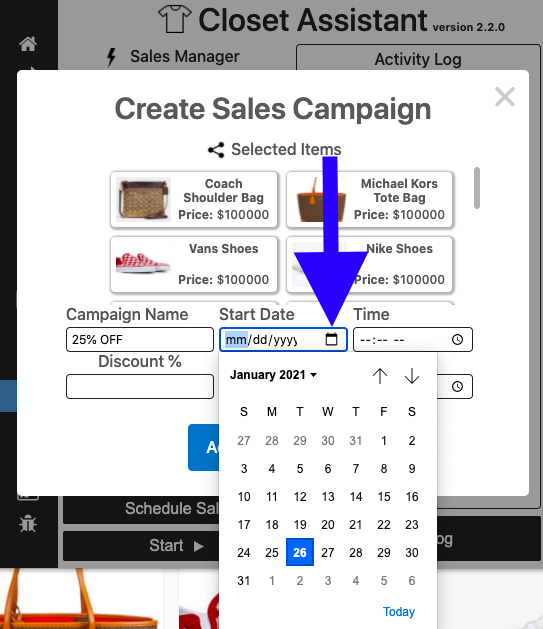
8) Enter the campaign start time.
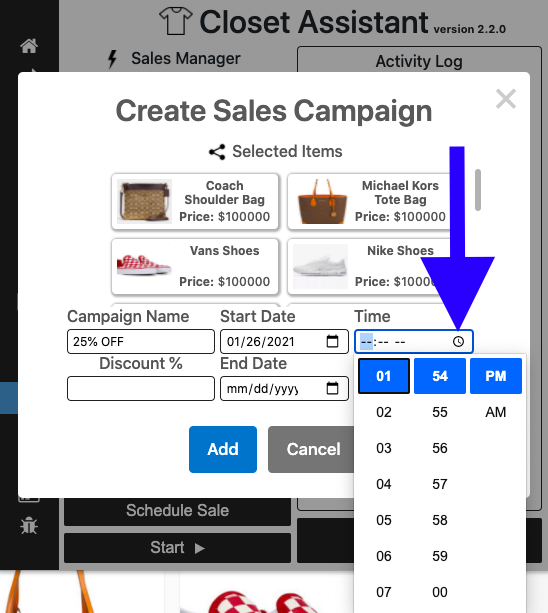
9) Enter the discount you would like applied during the sale.
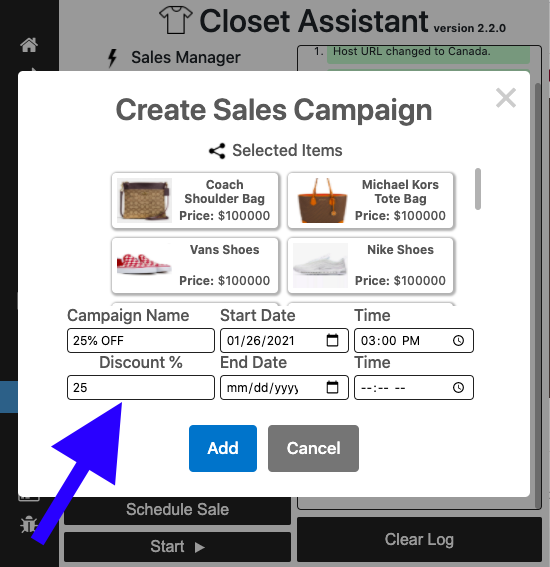
10) Enter the end date of the sale.
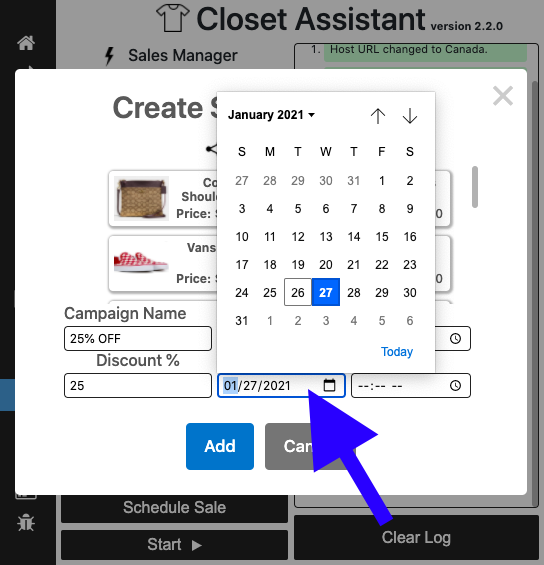
11) Enter the sales end time.
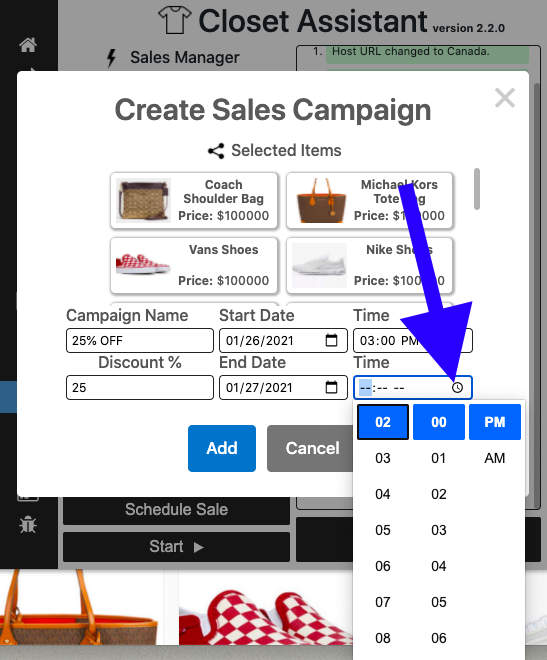
12) Select Add.
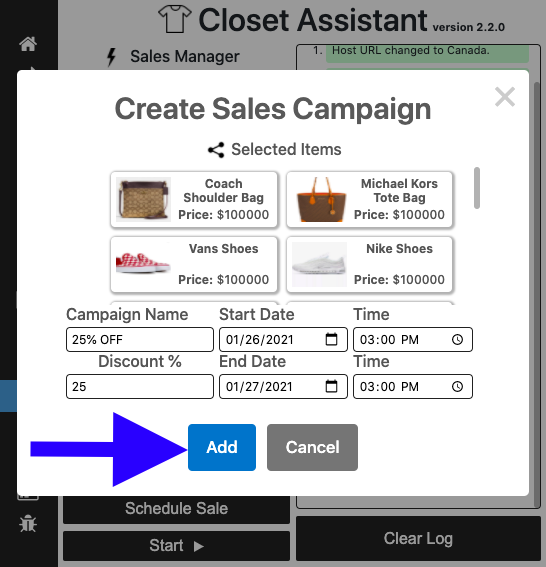
13) You will then receive a Task Created Successfully Message.
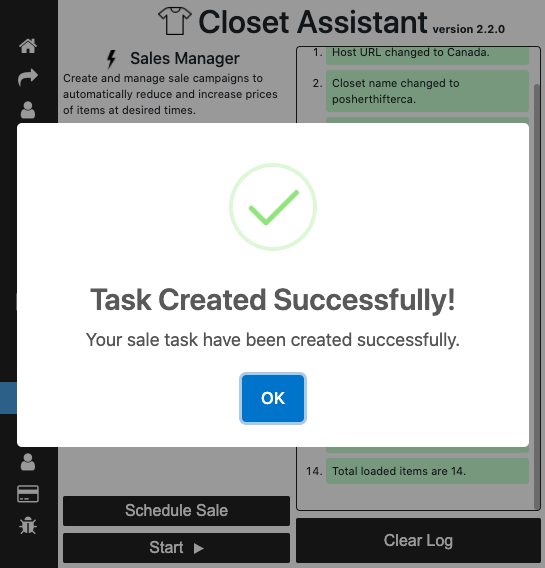
14) Select start.
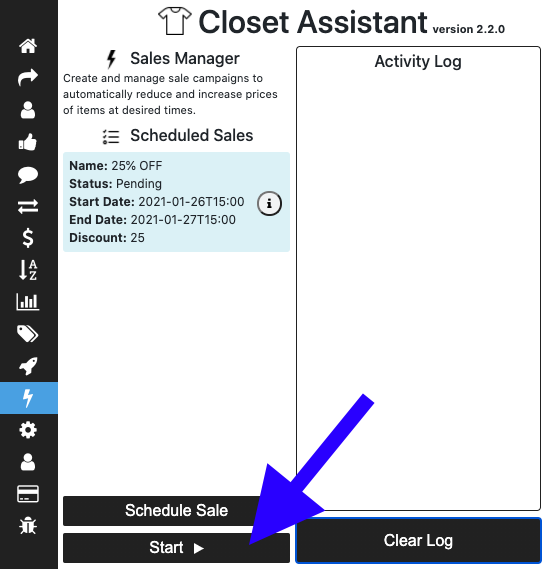
The sale will begin at the start time selected and open a new tab within Chrome to run the sale, at the end of the sale the extension will restore the items to their original price. The new chrome tab that is open will need to remain open for the duration of the sale.
Computer Recommendations
- Turn Screen Savers, Sleep Modes, or other energy-saving modes OFF.
- Interruptions of internet connections may cause interruptions.
Browser
- The google chrome browser must remain open once you start a sale.